Updated November 2026. For OBS Studio on Windows and Mac.
Quick answer:
- Connect your digital piano or MIDI keyboard to the computer by USB.
- Install the free MIDI Piano Keyboard plugin for OBS (OBS 31 or later).
- Add it as a source, pick your MIDI device and the number of keys.
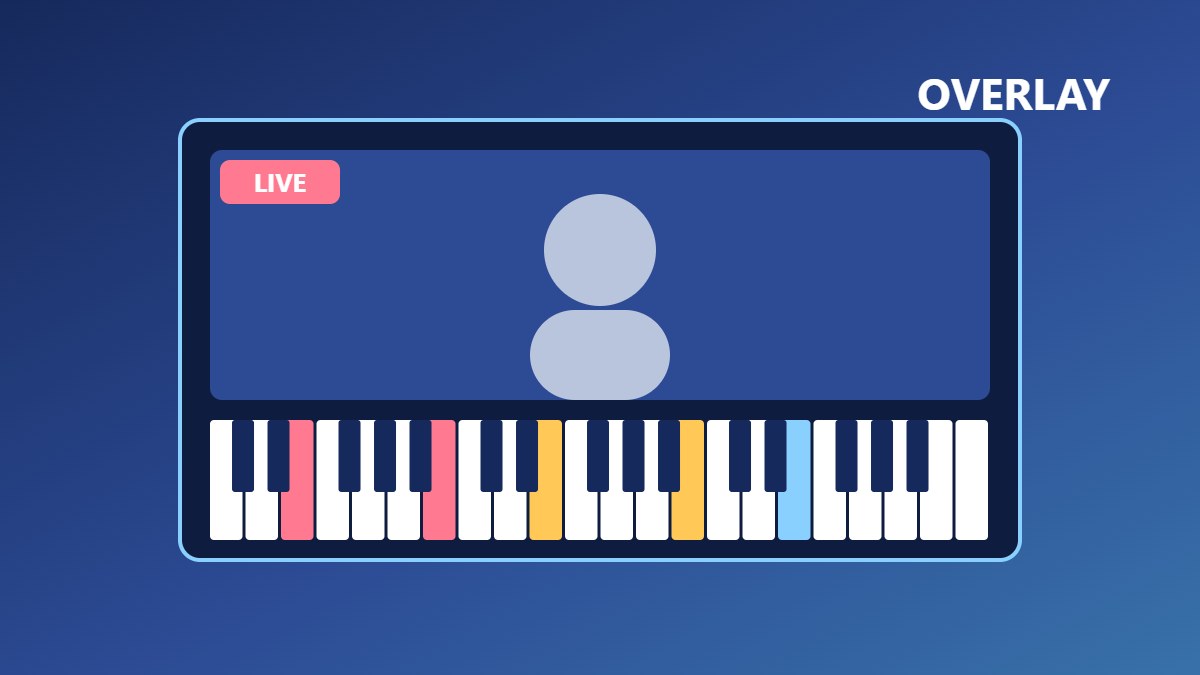
- Place the keyboard along the bottom of your scene, under the camera.
Why add a keyboard overlay?
A camera shows hands, but fast passages, crossed hands and dark rooms make it hard to see which keys you play. A keyboard overlay lights up every note from your MIDI signal, so viewers can follow along and players in chat can learn from you. It also looks great on a hands-free “calm night” stream.
Option 1: the MIDI Piano Keyboard plugin
This free, open-source OBS plugin draws a piano keyboard right inside OBS and lights the keys from your MIDI input.
- Download it from its page on the OBS forum or GitHub and install it. It needs OBS 31 or later.
- Restart OBS, click + under Sources and add the MIDI keyboard source.
- Choose your MIDI device and set the key range (25 to 88 keys) to match your instrument.
- Resize it to fit the bottom of your scene.
Test before going live. A user has reported high memory use, so run a private test stream and watch OBS’s performance stats.
Option 2: a separate app captured into OBS
Some keyboard displays run outside OBS:
- MIDI Jar (free, Windows and Mac) shows a keyboard and the chord names you play, and serves the display to an OBS Browser Source through its built-in local server.
- Web MIDI keyboard pages such as MIDIocrity run in Chrome or Edge. OBS’s browser source can’t read MIDI devices itself, so open the page in a normal browser window and add it with Window Capture.
Option 3: falling notes or a 3D piano
For more than lit keys, a real-time visualizer can show falling notes or a 3D keyboard reacting to your playing. Capture its window as a scene for “piano cam” moments. See 3D piano visualizers and falling notes videos. After the stream, the same MIDI can become a polished video, for example a 3D pianist performance in Unreal Musician.
Common problems
| Problem | Fix |
|---|---|
| No keys light up | Check the keyboard is connected by USB and selected as the MIDI device. Close other apps that might be using it. |
| Keys light up late | The overlay is usually instant; delay comes from the camera. Add a sync offset to the audio or camera in OBS so everything lines up. |
| Only some keys appear | Set the key range to your instrument (61, 76 or 88 keys). |
| Browser page shows no notes in OBS | Browser sources can’t access MIDI. Use Window Capture or a tool with a local server. |
FAQ
Does this work with an acoustic piano?
Only if it has MIDI output, such as a hybrid or a piano with a MIDI strip installed. Otherwise you need a digital piano or MIDI keyboard.
Will the overlay affect my sound?
No. It only reads MIDI notes; your piano audio goes through your audio interface or USB as usual.
Can I record the MIDI at the same time?
Yes. Run a DAW or MIDI recorder alongside OBS. You can reuse the performance later.